Tools Gateway
The Tools Gateway, also known as the EmbeddedNode, allows users to connect USB-enabled tools, such as a digital multimeter or an external camera to SME Connect. The Tools Gateway supports tools such as digital cameras, digital micrometers, digital multimeters, and optical borescope. For backend APIs, the Tools Gateway and its connected tools are each considered individual users, with the tools having a direct connection with a Tools Gateway (known as “EmNode” or “Embedded Node”).
The Tools Gateway Overview
In the SME Connect system, the Tools Gateway will be used by on-site users to collect, scan, and analyze additional data with external USB tools. The main parts of the Tools Gateway are:
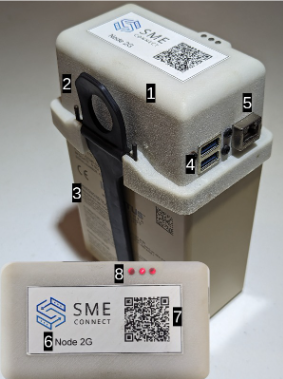
- The Tools Gateway itself (the main node system)
- The BB-2590 strap to secure the Tools Gateway to the BB-2590
- The BB-2590, which supplies the Tools Gateway with power
- The USB "A" Ports for tools
- Ethernet Cable Port
- Node identifier
- QR Code for adding the Node to a room
- Status LED lights
Documentation
This documentation highlights the adapt package that the Tools Gateway uses to connect to rooms and users. When using the documentation, it is organized in the following main directories:
- .dpkg: Package manager for the Debian-based system of the adapt-linux-embedded package. It contains scripts, Debian control files, and systemd/udev configurations
- bin: Tools Gateway related scripts, including resetting the Node lights, resetting the tools and starting the Node/Tools.
- lib: Library of custom-built packages for the Tools Gateway. These packages include:
dwe.ai.v4l2camera-*: Package for handling the v4l2 camera connections for toolsepollmjpeg-to-i420-*: Package that transfersmjpegvideo format toi420format. This is a custom-built packageturnaroundfactor-common-*: Thejs_commonpackage for logging into backend services, joining rooms, and making WebRTC connectionswrtc-*: Package for WebRTC
- src: Main files for the codebase
DPKG Directory
The Debian package directory is used to install, remove, and provide information about different debian packages on the Tools Gateway. Within this directory are scripts for handling the creation of the Tools Gateway debian package, as well as a Debian directory, deb for controlling how the package handles installation, and the etc directory for the varied service configurations and rules.
.dpkg directory:
.dpkg
├── build.sh
├── copy.sh
├── deb
│   ├── DEBIAN
│   │   ├── control
│   │   ├── postinst
│   │   ├── preinst
│   │   └── prerm
│   └── etc
│       ├── systemd
│       │   └── system
│       │       ├── taf-areacam@.service
│       │       ├── taf-boroscope@.service
│       │       ├── taf-dmm@.service
│       │       ├── taf-main.service
│       │       ├── taf-microscope@.service
│       │       └── taf-opticalmicrometer@.service
│       └── udev
│           └── rules.d
│               ├── 18-taf-opticalmicrometer.rules
│               ├── 19-taf-boroscope.rules
│               ├── 20-taf-dmm.rules
│               ├── 21-taf-areacam.rules
│               └── 22-taf-microscope.rules
├── mkdeb.sh
└── update.sh
build, copy, mkdeb, and update Files
These files are the scripts needed to build and install the Tools Gateway debian package on the Embedded Node.
Debian Directory
The Debian directory handles the post and pre-installation tasks for the Tools Gateway package. It also contains the control file, which contains the package's metadata, including which version of the Tools Gateway is installed or used.
ETC Directory
This directory has two sub-directories are used by developers: systemd and udev. systemd contains the details about the different tool and Embedded Node services that the Tools Gateway will run. These files highlight important details about the service, including a description, what other services or targets need to be set, and any scripts or actions that will occur when the service starts/stops. udev has the main tool/node rules for the service. These rules include any system links, attributes, or tags for the service.
Devices that use the taf-areacam or taf-boroscope service will need to be registered in their respective rules in the udev directory. Examples of this data can be found in the files.
Bin Directory
bin
├── resetNodeLights.sh
├── resetToolLights.sh
├── resetTools.sh
├── startNode.sh
├── startNode.ts
├── startTool.sh
├── startTool.ts
└── utils
    └── env.sh
The Bin directory contains the main scripts and initilaization of node processes for the EmbeddedNode and individual tools. All tools will begin with the startTool.sh bash script, while the Tools Gateway will begin with the startNode.sh script. These scripts will initialize the startNode.ts and startTool.ts node processes.
Each of these node processes that start by either the startNode or startTool scripts are independent and separate from one another. This means that one tool connected to the node does not actually know about another tool connected to the same node. Actions done by one tool will not impact the other tool (with the exception of streaming and video sizes).
The resetNodeLights and resetToolLights are processes that will change the LEDs when the Tools Gateway or a tool are reset.
The utils directory contains an env script that handles changing a Tools Gateway's environment from dev, qa, or prod. This change is useful for development purposes. In production environment, the Tools Gateway will only be in the prod version of SME Connect.
Lib Directory
lib
├── dwe.ai-v4l2camera-1.2.3.tgz
├── epoll-4.0.2.tgz
├── mjpeg-to-i420-1.0.0.tgz
├── turnaroundfactor-common-2.1.5.tgz
└── wrtc-0.4.8-adapt-rpi.tgz
The lib directory contains pre-built packages for the Tools Gateway. These packages include:
dwe.ai.v4l2camera-*: Package for handling the v4l2 camera connections for toolsepollmjpeg-to-i420-*: Package that transfersmjpegvideo format toi420format. This is a custom-built packageturnaroundfactor-common-*: Thejs_commonpackage for logging into backend services, joining rooms, and making WebRTC connectionswrtc-*A custom version of the webRTC package that is used for WebRTC connections. The custom version contains a YUY2 to I420 converter.
Updating JS Common
When js_common is updated, the repository needs to build and package a new version. The following directions should be followed when updating this package:
- Install the latest package
npm i @turnaroundfactor/common@latest # requires NODE_AUTH_TOKEN
- Go into the
libdirectory
cd lib
- Package the new
js_common
npm pack ../node_modules/@turnaroundfactor/common
- Remove older js_common packages
rm turnaroundfactor-common-[VERSION].tgz # old versions
- Edit
package.jsonfor the new file path:
"@turnaroundfactor/common": "./lib/turnaroundfactor-common-[VERSION].tgz",
- Update
package-lock.json
cd .. #get back to the project root directory
npm i
SRC Directory
The SRC package contains the main source code for the Embedded Node package. It has the following folder structure:
src
├── Base.d.ts
├── Base.jammy.ts
├── Base.noble.ts
├── drivers
│   ├── amprobe_38xr_a
│   │   ├── data.ts
│   │   └── index.ts
│   ├── CamFeed.ts
│   ├── generic_camera
│   │   └── index.ts
│   ├── index.ts
│   ├── micrometer
│   │   ├── data.ts
│   │   └── index.ts
│   ├── MultipleFeed.ts
│   └── SerialFeed.ts
├── index.ts
├── LedManager.ts
├── NodeManager.ts
├── StreamManager.ts
├── Stream.ts
├── Tool.ts
├── types.d.ts
└── util
    ├── configureAxios.ts
    ├── Emitter.ts
    ├── Logger.ts
    └── toolAmount.ts
Base.jammy & Base.noble
There are two Ubuntu versions, jammy and noble that this package supports. All newer series of the Tools Gateway (4-series and above) use the noble version of the Tools Gateway. These two Ubuntu versions had slightly different certificate processes and installation requirements, which is why there are two separate Base classes for either jammy or noble versions.
When editing and changing the Base class, update both the jammy and noble versions of these classes for consistent behavior across all nodes.
Both the NodeManager and Tool classes extend this Base class.
NodeManager and Tool
The NodeManager and Tool classes are the main classes for managing the Tools Gateway and any individual tool. These classes handle the login and connection processes, as well as control the system's leds.
In the workflow of the Tools Gateway, the NodeManager is the first class to be created as the Tool classes need to know what the UUID of the main TAF service is.
The class diagram highlights how the NodeManager, Tool, and Base classes interact with each other, and some of the unique properties/methods associated with them.
LedManager 🔵🟢🔴
The LedManager handles changing the lights on the Tools Gateway. These lights are the status indicators for a user to see how the node is processing the main service or any individual tool.
The main service and any tool have their own instance of the LedManager and will control the lights based on their individual statuses. The LedManager depends on the following debian packages to be installed on the node: libgpiod-dev and gpiod. These packages help control and manage the LEDs.
The LedManager executes the gpioset command along with the specific led pins that control the Tools Gateway lights. These pins can be found in the codebase. Note -- there are some discrepencies between the different Tools Gateway node series. The 4-series nodes, for example, have a status green 🟢 led that is perpetually on to indicate that the Tools Gateway has power, while the 2-series nodes do not have this status light on. This may create different color combinations or intensities that need to be considered when reprogramming.
This reference guide uses the 4-series node as the base model. These nodes have 2 different LEDs that can be controlled (there is a total of 3).
The following status lights have been programmed, note the consistent green LED represents the status light:
| LEDs | Color | Description |
|---|---|---|
| 🟢⚪⚪ | Steady White | Tools Gateway is restarting / off |
| 🟢🔵🔵 | Steady Blue | Tools Gateway is online, waiting for tools |
| 🟢🟢🔵 | Flashing Blue | Tools Gateway is processing/loading |
| 🟢🟢🟢 | Steady Green | Tool is connected to room |
| 🟢🔴🔴 | Flashing Red | Error condition |
Stream & Stream Manager
These classes relate to the data and video streams that a Tool class will have when connecting with peers.
Drivers
The Drivers directory contains the main data and video drivers for a tool. These drivers are what handle the different data feeds that a camera, digital multimeter, or boroscope will need to function.
The directory is divided into overall classes, such as CamFeed, SerialFeed, and MultipleFeed, as well as tool-related directories that extend these main classes.
Main Service Workflow
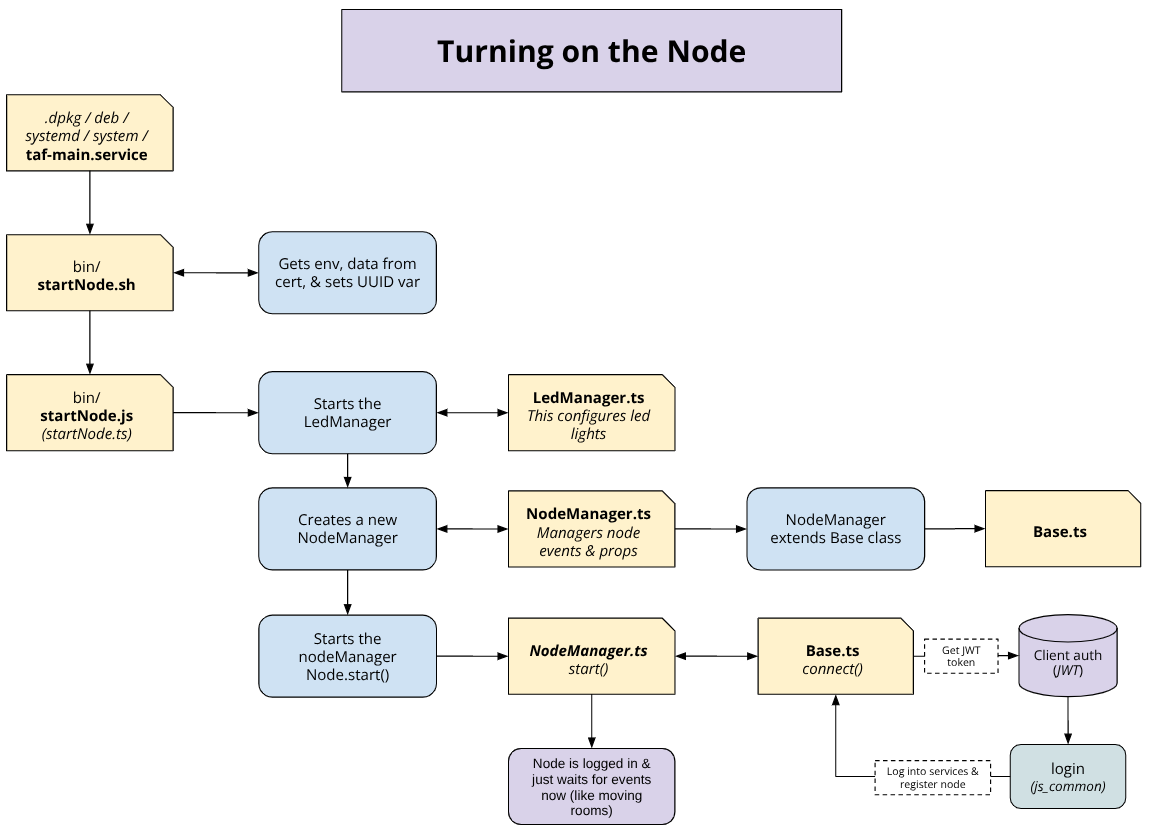
The taf-main.service is the entry point for the entire Tools Gateway. The taf.-main.service file found in the .dpkg directory outlines how this process starts, which Node processes it kicks off, and ultimately what happens when this process either restarts or stops.
The diagram below highlights this process and can be used as a reference to understand a broad overview of how the different files in this repository work together to start the Tools Gateway.
Tool Services Workflow
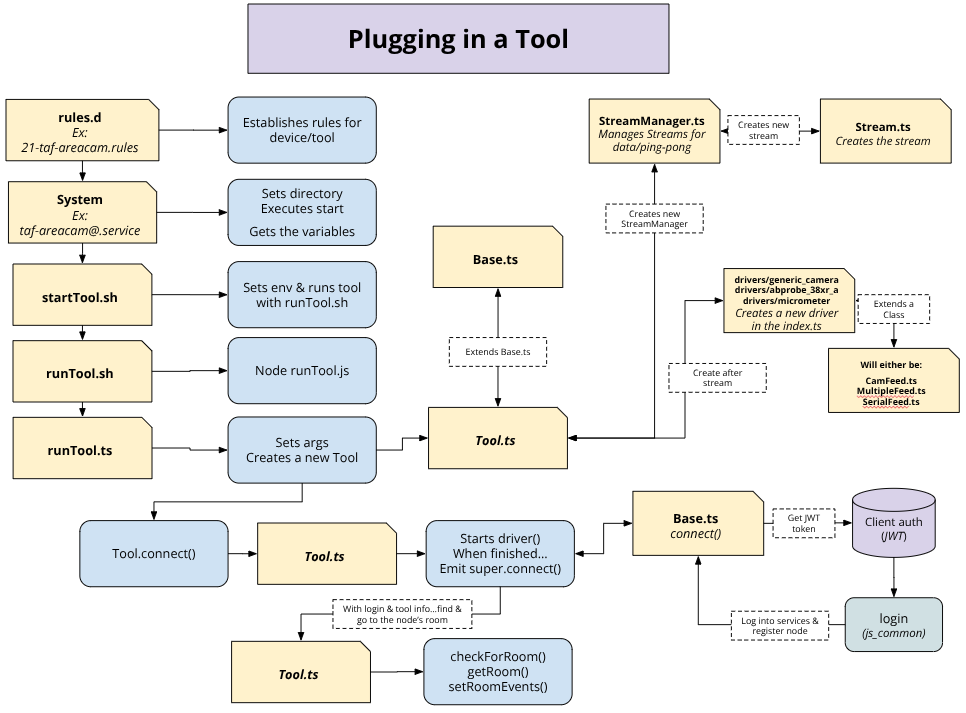
When plugging in a tool, the Tools Gateway service first determines which type of tool was plugged into the node. This determination is based on the udev rules for each tool, which includes the idVendor and idProduct values from a particular tool's metadata.
If a new tool is not recognized by the Tools Gateway, add its ID to its respective tool udev rule. You can check the tool's ID through the lsusb command.
There are four main type of tools that the Tools Gateway recognizes:
- DMM: The digital multimeter (taf-dmm@.service)
- Boroscope: The flexible & rigid boroscopes (taf-boroscope@.service)
- Microscope: A digital microscope (taf-microscope@.service)
- Optical Micrometer - An optical micrometer (taf-opticalmicrometer@.service)
- Generic Camera: A generic USB web camera (taf-areacam@.service)
The tool service follows a similar workflow as the main TAF service, with the addition of managing and starting data streams and drivers for managing the tool's data.
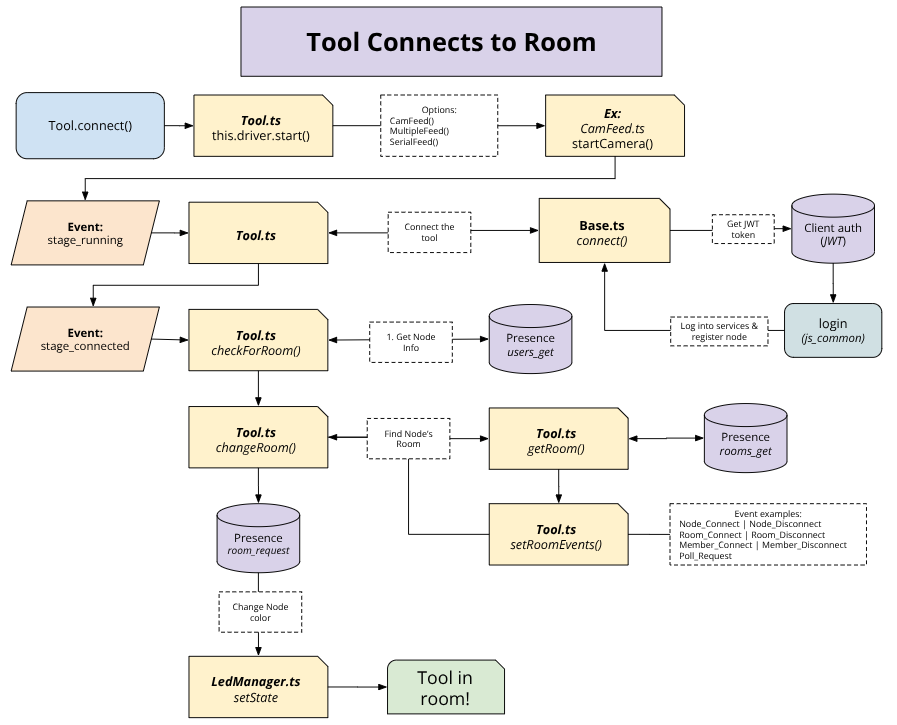
When connecting to a room, a tool needs to know which room its parent is connected to. The tool's parent is indicated by the tool's parentUuid property. This value is used to retrieve the main service's information from the presence database. The data from presence is used to tell the Tool which room to request to join.
The diagram below highlights this process and begins when the tool begins its connection process, which starts the tool's driver and logs into the SME COnnect backend services.
Updating the Tools Gateway Version
In order to update the Tools Gateway package to the latest changes, the TG package version number to be updated for apt to know that there have been changes. Updating the Tools Gateway to a new version involves updating three files: package.json, the control file in the .dpkg directory, and the README file.
Helpful tip:
- Use the search function to search for the old version number to find the three files that need updating.
Updating package.json
- Increment the version number in the
versionproperty inpackage.json. npm install- Check that both
package.jsonandpackage-lock.jsonhave been updated
Updating control file
- Change the version number to match the value in
package.json
Updating the README
- In the
Tools Gateway Version Notessection, add a new section with the latest version. Include notes of what changes have been made in this latest version.
Editing the Documentation
This documentation is created using docusaurus. This website builder has been setup to use TypeDoc.
The documentation files can be found in the docs directory in this repository's source files. When editing these files, do not change the file names as docusaurus has been set up to find and use these file names. The following list highlights what is contained in each file and what contents should be updated/edited when updating the documentation.
- docusaurus.config.ts
- This configuration file contains the metadata and configuration settings for creating the docusaurus website. It also includes the navigation settings. If copying this repository, update only the title property with the name of the service.
- index.md
- This file is the homepage information for the documentation. If copying this repository, edit the entire contents of this file.
- typedoc.json
- This file contains the
TypeDocconfiguration used to compile and generate the documentation for this repository's functions and classes. When editing this file, edit only thename.
- This file contains the
- typedocIntro.md
- This file contains the introductory information for the
TypeDocsection of the documentation. This section highlights information about the service's functions and classes used. If copying or editing this repository, edit only thenameproperty.
- This file contains the introductory information for the
- assets
- This folder contains images that can be used in the
typedocIntro.mdandindex.mdfiles. Reference a relative URL path of:img/[FILE PATH]for Docusaurus to adequately find the image.
- This folder contains images that can be used in the
Documentation Resources
To understand more about this documentation and the resources used to compile it, consult the following resources:
- Docusaurus.io - The main website compiler.
- TypeDoc - The TypeScript documentation generator. It uses comments in files to create documentation
Important SME Connect Terminology - Tools Gateway Edition
- CAC - Common Access Card. This is a “smart” ID card for military personnel, contractors, or DoD employees. In the backend, there is a special method and process for CAC logins.
- Embedded Node (EmNode) - User classification of someone using the Tools Gateway. This was the previous name used for the Tools Gateway. In Presence, the
EmbeddedNodeis a type/device. - JWT - JSON Web Token. These tokens are created/signed during the user authentication. In
Presence, aJWTendpoint is used to authenticate a user for theassetsservice. - Onsite Expert - User type of someone using an iPad
- Remote Expert - User type of someone using the Web UI
- SME - subject matter expert
- Tools Gateway - A device that connects any USB or serial-enabled tool to the iPad and the remote expert. Previously, this device was known as the “Embedded Node”, which you may still hear used. The Tools Gateway supports tools such as digital cameras, digital micrometers, digital multimeters, and optical borescope. For backend APIs, the Tools Gateway and its connected tools are each considered individual users, with the tools having a direct connection with a Tools Gateway (known as “EmNode” or “Embedded Node”).